Don't get me wrong, I love apps. I have some very favorite ones that I love to use. The reason I say it is not always about the apps is that if you are a BYOD (bring your own device) school, whatever you use should be available on all devices.
Sometimes I think we get so caught up in apps, that we forget to use the camera tool that comes on each device. It is possible to create quality lesson plans for students with a variety of devices. By not getting caught up in a specific app that is designed only for one type of device, you are allowing students to choose what is best for them.
My co-worker and I created a short PBL (problem/project/process based learning) for a BYOD training that I had. It was a PBL for Kindergarten and First Grade about shapes. We had the teachers using the camera tool from their device to scan a QR code with the directions, and then they went around the school to find the shapes their students were studying. When they had at least three images on their device, the teachers put their images into an app that allows them to narrate what the shape is and what the attributes of the shape is. After that, we opened up a whiteboard app for the teachers to create their own shape. They had to record their voice to tell what the shape is and the attributes of the shape.
Yes, I used apps for the above professional development. However, it wasn't device specific.
photo credit: iPad: kids via photopin (license)
Showing posts with label apps. Show all posts
Monday, June 1, 2015
Tuesday, November 25, 2014
App Smashing & Differentiation
I have been having a great time sharing two of my favorite apps with elementary schools. I always start by telling the teachers I am going to model how they can use one iPad in a classroom as a center.

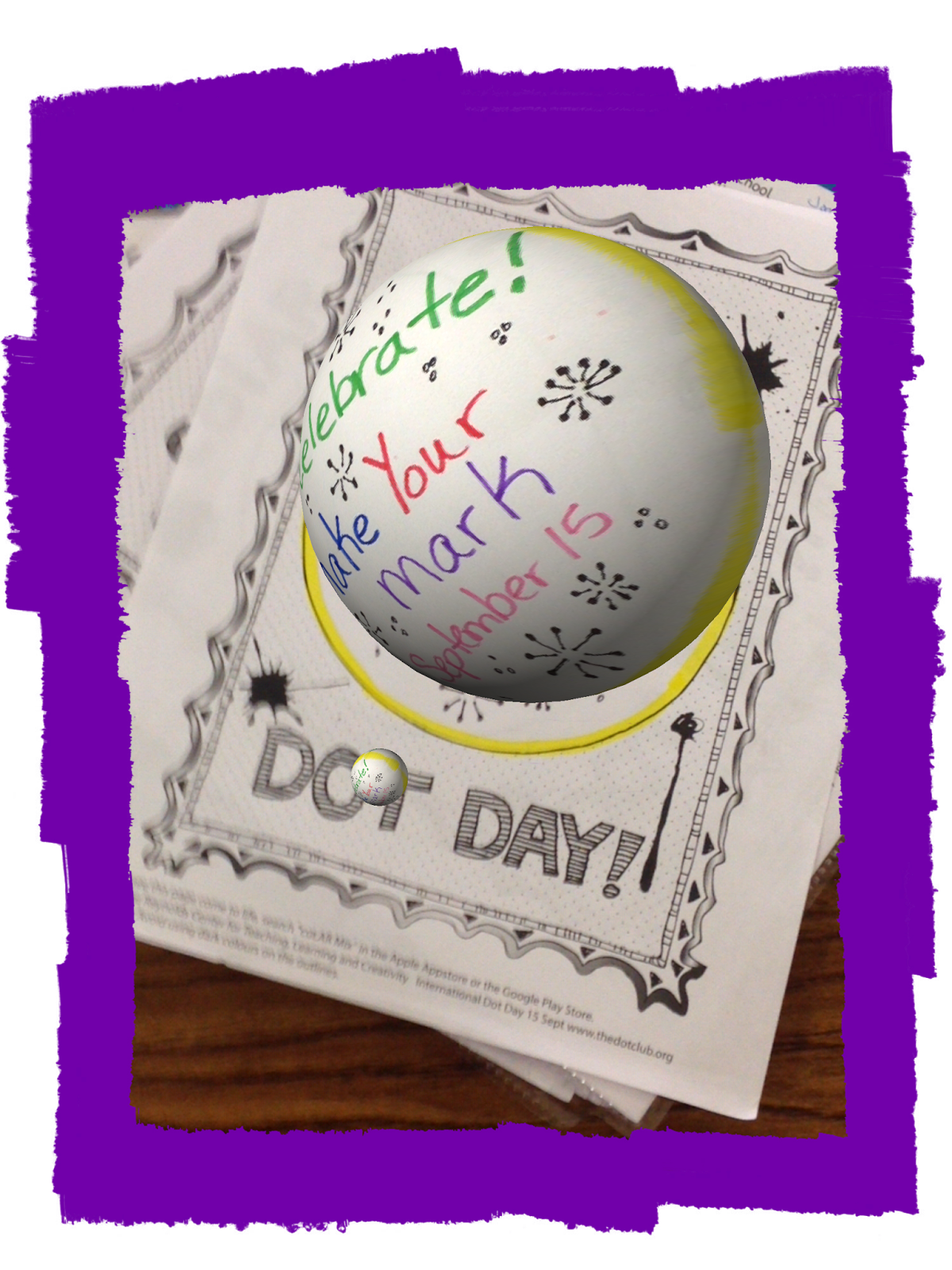
I gave the teachers a blank coloring page from colAR Mix. I usually print the colAR Dot Day because that is the easiest to color in the amount of time we have during teacher planning times. After the teachers color the page, we then open the colAR Mix app. After the image became 3D within the app, we took a picture of it.
We opened the Write About This app and went to Quick Write which is one of the six options available within the app. We added our 3D image to the page. The teachers then told or wrote a story about their image.
What I love to tell teachers is how differentiation is built into this app. Underneath the picture, students can record their voice telling the story, instead of typing the story. So cool! What is even cooler is when they click to start typing the story, the keyboard opens and on the keyboard (with iOS 8.1.1) there is a microphone icon. When a student presses that icon, they can speak and the program types their story for them! How awesome is that? So those students who have a little trouble typing, can just dictate their story. I love this and the teachers love it also.
Another thing that I showed the teachers is that if they click on Random within the Write About This app, some pictures with writing prompts open up. There is a speaker that will read the prompt to a student, and from there they can type or record their own voice responding to the prompt. Also, under settings, teachers can choose to differentiate by changing the level of the writing prompt.
I used two different apps and smashed them together (thus, app smashing). I differentiated by showing how students could record their voice instead of typing.
Thursday, May 1, 2014
Writing Notes Using an iPad
I just came across this app on Twitter and downloaded it. It is called Notability. Right now the app is free in iTunes. Notability can be used on both the iPad and iPhone.
I like this app a lot. I like that I can change the position of the note from vertical to horizontal. I have been using Penultimate (free). I like that Penultimate syncs directly to Evernote. However, Penultimate makes me use their notebooks vertically and I can't change the position. Notability allows me to share my notes by email, Dropbox, Google Drive and many other ways.
Another favorite of mine with Notability is that I can choose different types of paper, both color and unlined, lined, or graph. With Penultimate I can choose different types of lined paper (narrow or wide) or graph paper, but I can't change the color of the paper. I know that the color of the paper may not be important to you, but sometimes I just feel like using a different color of paper!
Both apps allow you to add images to your notebooks. However, Notability also allows you to record voice notes. You can also type your notes in Notability.
Both apps have value for education because it allows students to take notes from their device. I think Notability may have a slight edge because it would also allow students to record specific things from their teacher as well as writing down or sketching out what the teacher is saying.
I am not sure which one I will use the most, but I will have fun trying both of them out!
Subscribe to:
Posts (Atom)